Free Gmail newsletter template
Copy the free template below and paste it into a new Gmail message. To reuse it, turn on templates (Settings, See all settings, Advanced, Templates, Enable), then in the message choose More options, Templates, Save draft as template. Each issue, insert the template, replace the bracketed text, and send to your contact label in Bcc.
Last reviewed October 22, 2026
Get the template
Click Copy template, open Gmail, click Compose and paste with Ctrl + V (Cmd + V on a Mac). Gmail keeps the headings, bold text, lists and colored boxes. Text in brackets is a spot to type over.
Hi everyone,
Here's what's happening this month. It takes about two minutes to read.
[Your main story headline]
Start with the one thing you most want people to know or do. Say what it is, when it happens and why it matters in three or four short sentences. End with the action: RSVP by Friday, or stop by this weekend.
Coming up
- Oct 14: First event, 7 PM
- Oct 21: Second event, 10 AM
- Nov 1: A deadline or due date
Quick notes
- One short reminder.
- A thank you to a volunteer or customer.
- A change people should know about.
Spotlight
A short story about one person: a member, a customer, a teammate or a volunteer. Two or three sentences.
Put your single most important ask here, with a link: register, donate, book, reply.
How to reach us: [you@yourdomain.com] | [555-123-4567] | [yourwebsite.com]
You're getting this because you signed up for our updates. Reply to this email to stop getting it. [Your mailing address]
Prefer a document? The same layout is in the free Google Docs template.
Save it as a Gmail template
- On a computer, open Gmail and click Settings (the gear), then See all settings.
- Open the Advanced tab. Next to Templates, click Enable, then Save Changes at the bottom.
- Click Compose and paste the template into the message.
- Click More options (the three dots at the bottom of the message), then Templates > Save draft as template > Save as new template, and name it.
- Next time, click Compose, then More options > Templates, and pick it under Insert template.
Steps from Gmail Help as of October 2026.
Fill it in and send it
- Replace everything in brackets. Keep the main story to three or four sentences.
- To add a photo, click Insert photo in the bar at the bottom of the message and choose Inline so it shows in the email, not as an attachment.
- To link text, select it and press Ctrl + K (Cmd + K on a Mac).
- Type your contact label in Bcc so nobody sees everyone's address. Our guide shows how to make a mailing list in Gmail.
- Send it to yourself first and check it on a phone.
Gmail has limits for this. As of October 2026, Gmail Help says a personal account can't send one email to more than 500 recipients or send more than 500 emails in a day. Google Workspace accounts allow up to 2,000 recipients per message (500 outside your organization) and 10,000 a day. And there's no unsubscribe link, no record of who opened it, and bounced addresses stay on your list.
Or skip the Gmail template
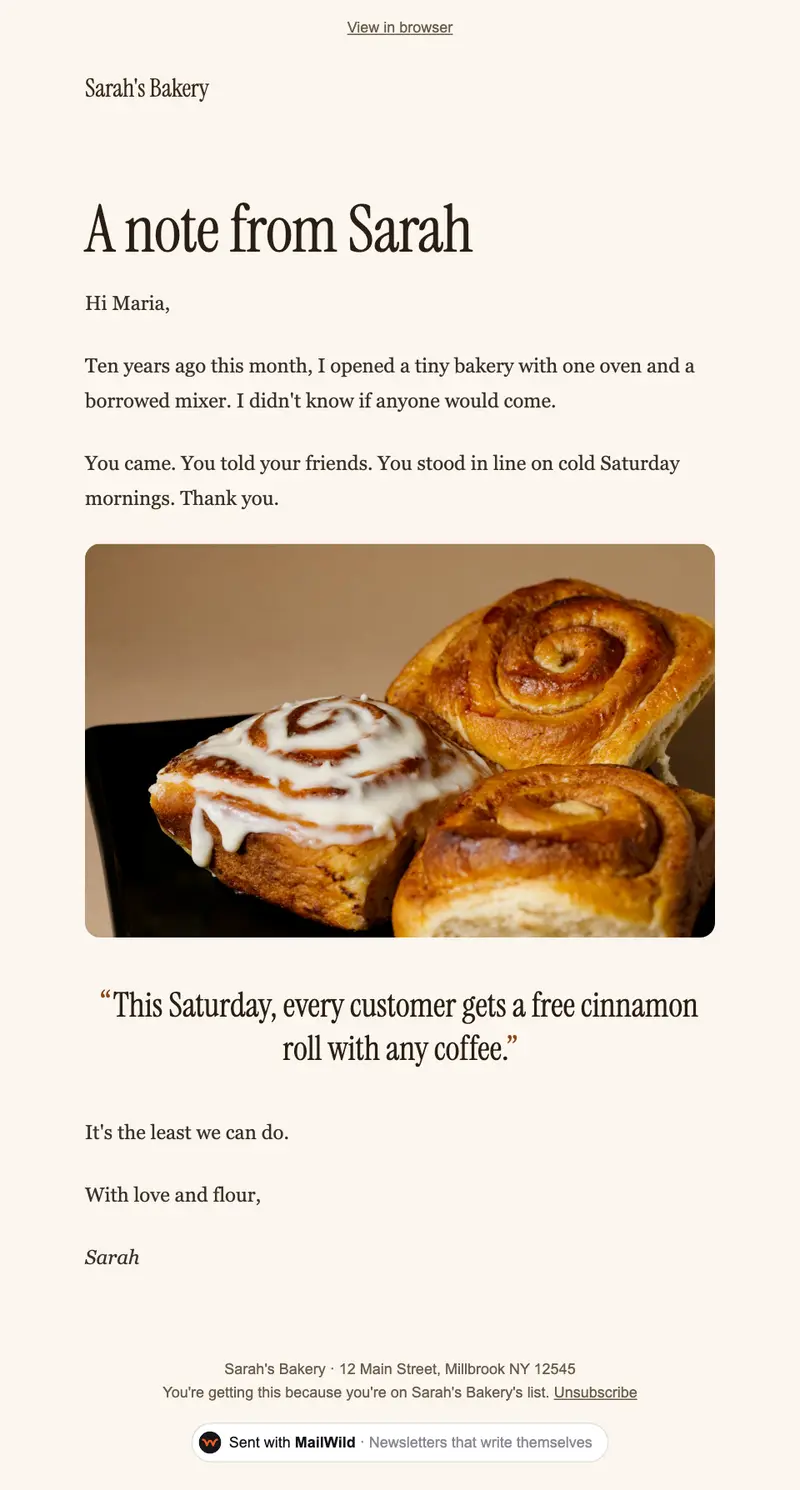
A Gmail template is fine for a family update or a small club. For a real list, you want unsubscribes handled, mail sent from your own domain, and a way to see who read it. The Personal Letter look below keeps the feel of a note from one person.
With MailWild you tell it your news in a few lines, add your photos or a YouTube link, and it writes the whole newsletter in seconds. You don't start from a pasted template. Drafts come back in Clean, a plain modern look in your brand color, and one click shows the same draft in Personal Letter, the look below, or any other look. Your words and photos stay put. You can also pick a look first and have MailWild fill it in.
- Edit anything in a simple block editor: photos, buttons, two-column rows and color bands. It looks right on phones automatically.
- Send from your own address at your own domain, signed so inboxes can verify it. Schedule it for later or send a free test to yourself first.
- Unsubscribes are handled. A one-click unsubscribe link and your mailing address are added to every email, and bounced addresses are removed.
- See who opened. Each newsletter shows delivered, opens, clicks and unsubscribes.
- Bring your list. Import a spreadsheet (CSV or Excel) or paste a list of emails. Duplicates and bad addresses are set aside for you.
The templates come with the software. Setting up is free: import your list, write, connect your domain and send yourself tests. You pay when you send to your list, priced by list size, with a 14-day money-back guarantee on the first payment. There is no free plan. See pricing.
Questions
Does Gmail have newsletter templates?
Gmail lets you save any email as a template, but it doesn't come with newsletter designs. Paste the free template on this page into a new message and save it as a Gmail template.
How do I turn on templates in Gmail?
Go to Settings, See all settings, Advanced, click Enable next to Templates, then Save Changes. Then in a message use More options, Templates. Steps as of October 2026.
How many people can I email at once from Gmail?
As of October 2026, Gmail Help says personal accounts can't send to more than 500 recipients in one email or send more than 500 emails a day. Google Workspace allows up to 2,000 recipients per message, 500 of them external.
Can I send a newsletter from Gmail?
For a small group, yes, with everyone in Bcc. For a larger list it lacks unsubscribe links, open tracking and bounce handling, and big sends from a personal address often land in spam.