How to make a mailing list in Gmail
Gmail mailing lists are labels in Google Contacts. Go to contacts.google.com, click Create label next to Labels, name it and save. Select the contacts you want, click Manage labels, choose the label and click Apply. In Gmail, click Compose and type the label's name in the Bcc field to add everyone. Personal accounts can email up to 500 people at a time.
Last reviewed October 22, 2026
Step 1: Create a label in Google Contacts
- Go to contacts.google.com, signed in to the same Google account you use for Gmail.
- On the left, next to Labels, click Create label.
- Type a name, like "Newsletter" or "Garden Club", and click Save.
Step 2: Add people to the label
If they're already in your contacts
- Tick the box next to each person (hover over their picture to see it).
- At the top, click Manage labels, pick your label and click Apply.
If they're in a spreadsheet
- Make sure the spreadsheet has a header row, with columns like Name and Email Address. Save it as a CSV file (in Google Sheets: File > Download > Comma-separated values).
- In Google Contacts, click Import on the left, then Select file, choose the CSV and click Import.
- Then select the new contacts and apply your label as above.
Google says imports can have problems over 3,000 contacts at a time, so split bigger files, and an account holds up to 25,000 contacts. Importing the same file twice creates duplicates.
Step 3: Email your list
- In Gmail, click Compose.
- Click Bcc at the right of the To line, start typing the label's name and pick it from the list. Gmail adds everyone in the label.
- Put your own address in To. Using Bcc keeps everyone's address private and stops reply-all chains.
- Write your newsletter (or paste our free Gmail newsletter template) and send.
Gmail's limits, honestly
Limits from Gmail Help and the Google Workspace admin help, as of October 2026.
- Personal Gmail: no more than 500 recipients in one email and no more than 500 emails sent in a day. Go over and you can be blocked from sending for up to 24 hours.
- Google Workspace: up to 2,000 recipients per message (at most 500 outside your organization), 2,000 messages and 10,000 recipients a day, with lower limits for trial accounts.
Even under the limits, a Gmail label is not a newsletter tool:
- No unsubscribe link. People who want off have to email you, and you have to remember to remove them. Email rules in many places expect an easy way out; see email newsletter rules.
- No idea who read it. No opens, no clicks.
- Bounces pile up. Old addresses stay on the label and keep bouncing, which hurts your account's reputation.
- Spam folders. One message to hundreds of people from a personal address looks like bulk mail, and often gets treated that way.
For a few dozen people, a Gmail label is fine. Gmail Help also suggests Google Groups for reaching large groups. If it's a real newsletter, a newsletter tool is the better fit.
Move the list to MailWild when it outgrows Gmail
To bring the list over, export it from Google Contacts: select the label, click Export, choose Google CSV and download the file. MailWild imports that CSV, matches the columns, removes duplicates and sets aside bad addresses.
With MailWild you tell it your news in a few lines, add your photos or a YouTube link, and it writes the whole newsletter in seconds. You don't start from a Gmail draft. Drafts come back in Clean, a plain modern look in your brand color, and one click shows the same draft in Personal Letter, the look below, or any other look. Your words and photos stay put. You can also pick a look first and have MailWild fill it in.
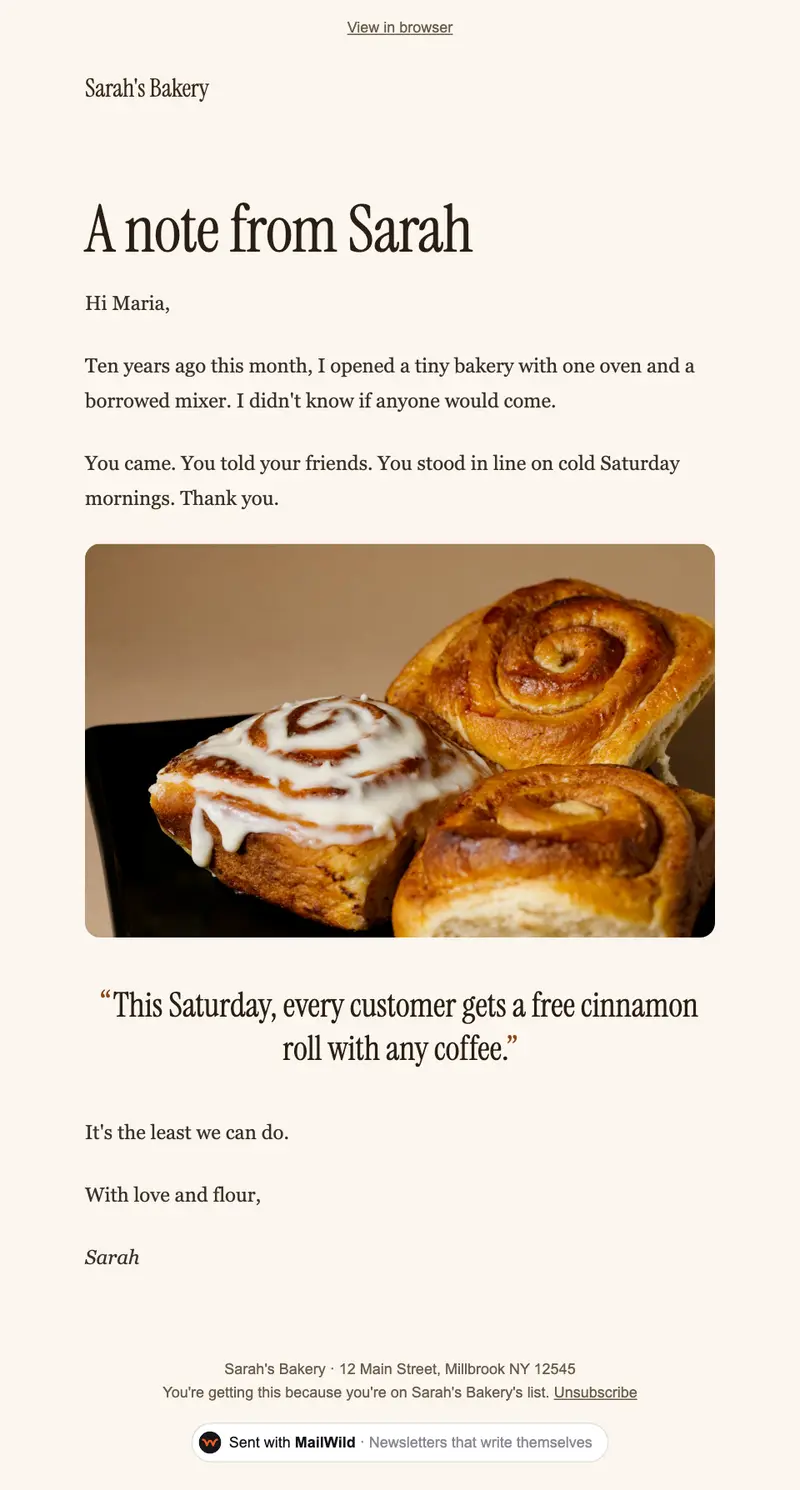
- Edit anything in a simple block editor: photos, buttons, two-column rows and color bands. It looks right on phones automatically.
- Send from your own address at your own domain, signed so inboxes can verify it. Schedule it for later or send a free test to yourself first.
- Unsubscribes are handled. A one-click unsubscribe link and your mailing address are added to every email, and bounced addresses are removed.
- See who opened. Each newsletter shows delivered, opens, clicks and unsubscribes.
- Bring your list. Import a spreadsheet (CSV or Excel) or paste a list of emails. Duplicates and bad addresses are set aside for you.
The templates come with the software. Setting up is free: import your list, write, connect your domain and send yourself tests. You pay when you send to your list, priced by list size, with a 14-day money-back guarantee on the first payment. There is no free plan. See pricing.
Questions
Can you make a mailing list in Gmail?
Yes. Create a label in Google Contacts, add people to it, and type the label's name in the To or Bcc field when you compose an email in Gmail.
How many people can I email at once from Gmail?
As of October 2026, a personal Gmail account can't send one email to more than 500 recipients or send more than 500 emails a day. Google Workspace allows up to 2,000 recipients per message, 500 of them outside your organization.
Should I use To or Bcc for a Gmail group email?
Bcc. It keeps everyone's address private and prevents reply-all chains. Put your own address in To.
Can I import a spreadsheet of emails into Gmail?
Yes. Save it as a CSV with a header row, then in Google Contacts click Import, Select file and Import. Google recommends splitting files over 3,000 contacts.
Does a Gmail mailing list have an unsubscribe link?
No. Gmail doesn't add an unsubscribe link to emails you send to a label, so you have to remove people by hand. Newsletter tools add one automatically.