Free Google Docs newsletter template
Download the free template below (a .docx file), then in Google Docs choose File, Open, Upload and pick the file. Choose File, Save as Google Docs, replace the bracketed text with your news, swap the grey boxes for your photos, and send it as a PDF or a view-only link. It has a masthead, a main story, dates, a spotlight and one call to action.
Last reviewed October 22, 2026
Get the template
Word file (.docx), about 40 KB. Opens in Google Docs, Microsoft Word and Pages. Free, no email needed.
One page: a colored masthead, a hello, a main story with a photo, "Coming up" and "Quick notes" side by side, a spotlight, one thing to do this month, and how to reach you.
It uses Georgia for headings and Arial for text, both built into Google Docs, so nothing shifts when you open it. Every bit of text in brackets, like [Your Organization], is a spot to type over. The example lines show what a finished section sounds like.
How to open it in Google Docs
- Download the template above. It saves to your computer as mailwild-newsletter-template.docx.
- Go to docs.google.com, then choose File > Open (or the folder icon on the Docs home page) and pick the Upload tab.
- Drag the file in, or click Browse and choose it. It opens with a small ".DOCX" label next to the title.
- Choose File > Save as Google Docs. You now have a normal Google Doc you can edit, share and copy each month.
- Rename it, for example "Newsletter, November 2026". Next month, use File > Make a copy so you keep the layout.
How to fill it in
- Masthead. Click into the colored box and type your name. To change its color, click inside it, choose Format > Table > Table properties, then Color, then Cell background color.
- Main story. Write the one thing you most want people to know or do, in three or four short sentences. End with the action: "RSVP by Friday" or "Stop by this weekend."
- Photos. Click inside a grey box, delete the note, then choose Insert > Image > Upload from computer. Drag a corner of the photo to fit the box.
- Dates and notes. Keep each line short. Three dates and three notes is plenty.
- Links. Select the words, then Insert > Link and paste the web address.
- Footer. Put your mailing address and how people can stop getting it. Email rules in many places expect both when you send to a list. See our email newsletter rules.
Stuck on what to write? Our guide on how to start an email newsletter walks through a first issue, and the monthly newsletter template has example copy for every section.
How to send a Google Docs newsletter
Google Docs makes the newsletter. It doesn't send it. You have three options:
- Attach a PDF. Choose File > Download > PDF document, then attach it to an email. The layout stays exactly as you made it, but people have to open the attachment, and many read email on a phone.
- Share a link. Click Share, set General access to Anyone with the link as Viewer, copy the link and email it. Easy, but it's one more click for the reader.
- Paste it into the email. Copy everything and paste it into Gmail or Outlook. Tables and photos often shift when you paste, so send a test to yourself first and check it on a phone.
Whichever you pick, put everyone in BCC, never in To or CC, so you don't share their addresses. BCC works for a few dozen people. Past that, mail starts landing in spam, there's no unsubscribe link, and you can't tell who read it.
Or skip the doc
The doc is the easy part. The work is getting it into people's inboxes, looking right on a phone, every month.
With MailWild you tell it your news in a few lines, add your photos or a YouTube link, and it writes the whole newsletter in seconds. You don't start from the doc. Drafts come back in Clean, a plain modern look in your brand color, and one click shows the same draft in any of the other 14 looks. Your words and photos stay put. You can also pick a look first and have MailWild fill it in.
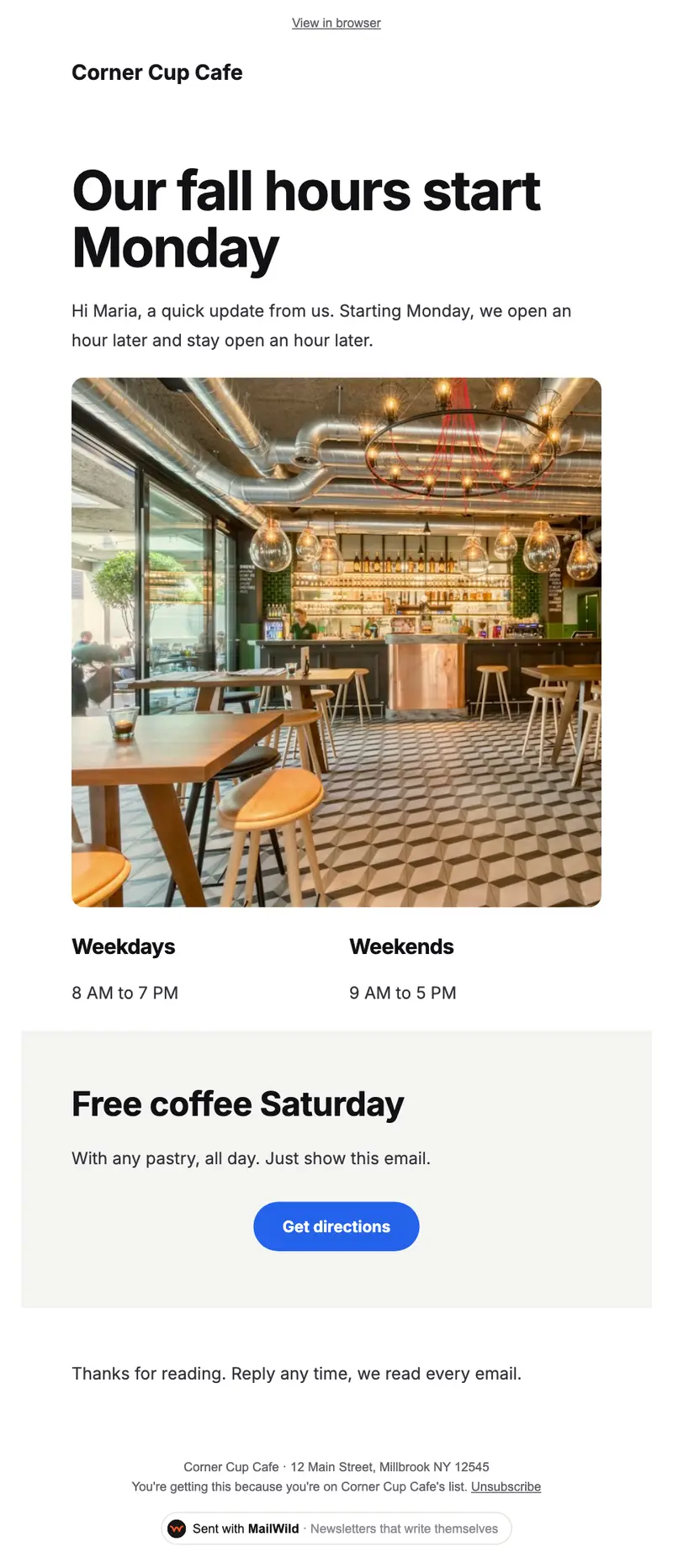
- Edit anything in a simple block editor: photos, buttons, two-column rows and color bands. It looks right on phones automatically.
- Send from your own address at your own domain, signed so inboxes can verify it. Schedule it for later or send a free test to yourself first.
- Unsubscribes are handled. A one-click unsubscribe link and your mailing address are added to every email, and bounced addresses are removed.
- See who opened. Each newsletter shows delivered, opens, clicks and unsubscribes.
- Bring your list. Import a spreadsheet (CSV or Excel) or paste a list of emails. Duplicates and bad addresses are set aside for you.
The templates come with the software. Setting up is free: import your list, write, connect your domain and send yourself tests. You pay when you send to your list, priced by list size, with a 14-day money-back guarantee on the first payment. There is no free plan. See pricing.
Questions
Is this Google Docs newsletter template free?
Yes. Download the .docx file, open it in Google Docs and use it as often as you like. No signup or email address needed.
How do I open a .docx file in Google Docs?
In Google Docs choose File, Open, then the Upload tab, and pick the file. Then choose File, Save as Google Docs to turn it into a normal Google Doc.
Does the template work in Microsoft Word?
Yes. It's a Word file, so it opens directly in Word, and also in Pages on a Mac.
How do I email a newsletter made in Google Docs?
Download it as a PDF and attach it, share a view-only link, or paste it into the email body and test it first, since layouts often shift when pasted. Put everyone in BCC. For more than a few dozen people, a newsletter tool handles delivery, unsubscribes and results.
How do I add photos to the template?
Click inside a grey photo box, delete the note, then choose Insert, Image, Upload from computer. Drag a corner of the photo to resize it.