Canva newsletter template: a free layout recipe
In Canva, create a US Letter design (8.5 x 11 in) and build six blocks top to bottom: a 1.3 inch colored masthead, a hero photo, a headline with two lines of intro, two story boxes side by side, one dark call to action box and a footer. Use Playfair Display for headings and Open Sans for text. Exact sizes and colors are below.
Last reviewed October 22, 2026
The layout
We can't put a Canva template on our site, so here is the recipe instead. Everything uses shapes, frames and fonts that come with Canva, so it works on a free account.
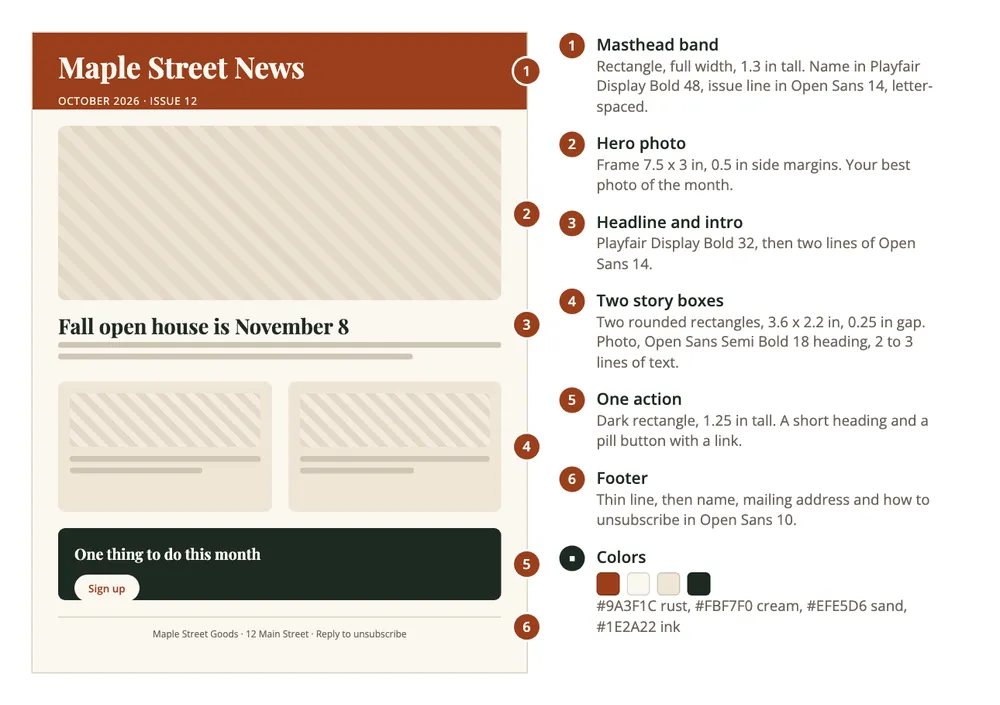
| Block | Size | Type |
|---|---|---|
| 1. Masthead | Full width, 1.3 in tall, #9A3F1C | Playfair Display Bold 48, cream; issue line Open Sans 14 |
| 2. Hero photo | Frame, 7.5 x 3 in | Your best photo of the month |
| 3. Headline and intro | Full width | Playfair Display Bold 32; Open Sans 14 |
| 4. Two story boxes | 3.6 x 2.2 in each, 0.25 in gap, #EFE5D6 | Open Sans Semi Bold 18; Open Sans 12 |
| 5. Call to action | Full width, 1.25 in tall, #1E2A22 | Playfair Display Bold 20, pill button |
| 6. Footer | Thin line, then one line of text | Open Sans 10: name, mailing address, how to unsubscribe |
Page background #FBF7F0. Leave 0.5 inch margins on the left and right. If Playfair Display feels too formal, Montserrat Bold for headings with Open Sans for text is a cleaner pair.
How to build it in Canva
- On the Canva home page, choose Create a design > Custom size, set it to 8.5 x 11 in and create it. For a newsletter only read on screens, 1080 px wide works too; keep the same proportions.
- Click the blank page, then the color square at the top left, and paste #FBF7F0 for the background.
- Masthead: open Elements, search "square", add a square shape, stretch it across the top and set its color to #9A3F1C. Add a text box for the name and another for the issue line.
- Photos: in Elements, search "frames" and add a rectangle frame. Upload your photos in Uploads and drag one into the frame; it crops to fit.
- Story boxes: add a rounded square, set it to #EFE5D6, size it, then duplicate it (Ctrl or Cmd + D) and line the two up. Put a small frame, a heading and two or three lines of text in each.
- Call to action: one more rounded rectangle in #1E2A22, a heading, and a small cream pill with one word like "Register" or "Donate". Select the pill and add a link to it.
- Footer: a thin line and one small line of text with your name, mailing address and how people can stop getting it.
- Next month, duplicate the page and swap in new photos and words. The layout stays the same, which helps people recognize it.
How to send a Canva newsletter
Canva designs it. You still need a way to get it to people:
- PDF attachment. Share > Download, file type PDF Standard. Links you added stay clickable in the PDF. Good for printing, but people have to open an attachment.
- A view-only link. Share a Canva link set to view only, and email the link.
- An image in the email. Download it as a PNG and paste it into the email. It looks exactly like your design, but the text is part of the picture: people who have images turned off see nothing, screen readers can't read it unless you add alt text, the words aren't searchable, and only one link can go on the whole image. On a phone, a letter-size page shrinks until it's hard to read.
Put everyone in BCC, never To or CC. For more than a few dozen people, BCC from a personal account tends to land in spam and gives no unsubscribe link. Our guide to starting an email newsletter covers the better way.
Or skip the design tool
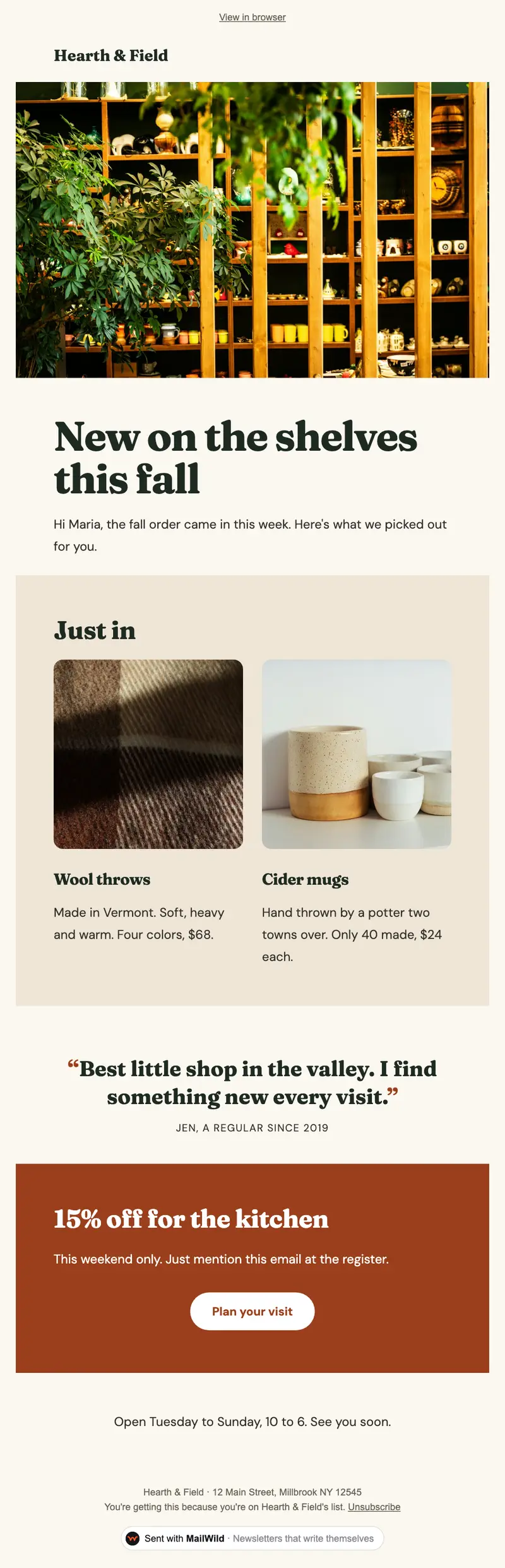
A Canva design looks great as a picture. An email newsletter needs real text that reads well on a phone, links that work, and a way for people to unsubscribe. The Shop Talk look below uses the same rust and cream palette as the layout above.
With MailWild you tell it your news in a few lines, add your photos or a YouTube link, and it writes the whole newsletter in seconds. You don't start from a blank page. Drafts come back in Clean, a plain modern look in your brand color, and one click shows the same draft in Shop Talk, the look below, or any other look. Your words and photos stay put. You can also pick a look first and have MailWild fill it in.
- Edit anything in a simple block editor: photos, buttons, two-column rows and color bands. It looks right on phones automatically.
- Send from your own address at your own domain, signed so inboxes can verify it. Schedule it for later or send a free test to yourself first.
- Unsubscribes are handled. A one-click unsubscribe link and your mailing address are added to every email, and bounced addresses are removed.
- See who opened. Each newsletter shows delivered, opens, clicks and unsubscribes.
- Bring your list. Import a spreadsheet (CSV or Excel) or paste a list of emails. Duplicates and bad addresses are set aside for you.
The templates come with the software. Setting up is free: import your list, write, connect your domain and send yourself tests. You pay when you send to your list, priced by list size, with a 14-day money-back guarantee on the first payment. There is no free plan. See pricing.
Questions
Does Canva have newsletter templates?
Yes, Canva has its own newsletter templates. This page gives a layout recipe instead: exact sizes, fonts and colors you can build on a free account, so your newsletter doesn't look like everyone else's.
What size should a Canva newsletter be?
Use US Letter, 8.5 x 11 inches, if you'll print it or send it as a PDF. If it's only for screens, 1080 pixels wide works. For email, real text in the email body reads better on phones than one big image.
Can I send a Canva newsletter by email?
Yes. Download it as a PDF and attach it, share a view-only link, or paste it in as a PNG image. Images in email have limits: no visible text if images are off, and only one link per image.
Which Canva fonts look good in a newsletter?
Playfair Display for headings with Open Sans for body text is a classic pair. Montserrat Bold with Open Sans is cleaner and more modern. Use two fonts at most.
Will the links in my Canva newsletter work?
Links stay clickable in a PDF download. In a PNG pasted into an email, the picture can only carry one link for the whole image.